Alert your team about Microsoft 365 issues affecting the tenant – Part 3
Published
Introduction
In the second part of these series, we continued the flow obtaining the issues per service name and filtering by those we are interested on, in the third part, we store the issues in a Microsoft List, and use it to publish a message in a Teams channel.
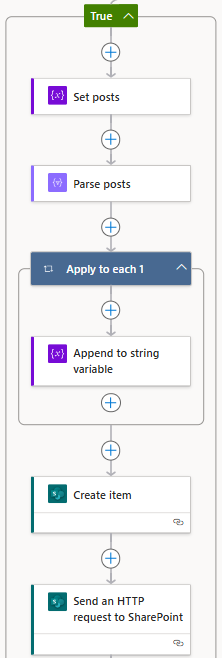
True path
Set posts (Set variable value)
Name: posts
Value: posts
Parse posts (Parse JSON)
Content: posts
Schema:
{
    "type": "array",
    "items": {
        "type": "object",
        "properties": {
            "createdDateTime": {
                "type": "string"
            },
            "postType": {
                "type": "string"
            },
            "description": {
                "type": "object",
                "properties": {
                    "contentType": {
                        "type": "string"
                    },
                    "content": {
                        "type": "string"
                    }
                }
            }
        },
        "required": [
            "createdDateTime",
            "postType",
            "description"
        ]
    }
}
Apply to each
Select an output from a previous step: Body
Append to string variable
Name: updates
Expression Value: @concat(item()[‘createdDateTime’],’-‘,item()?[‘description’]?[‘content’])
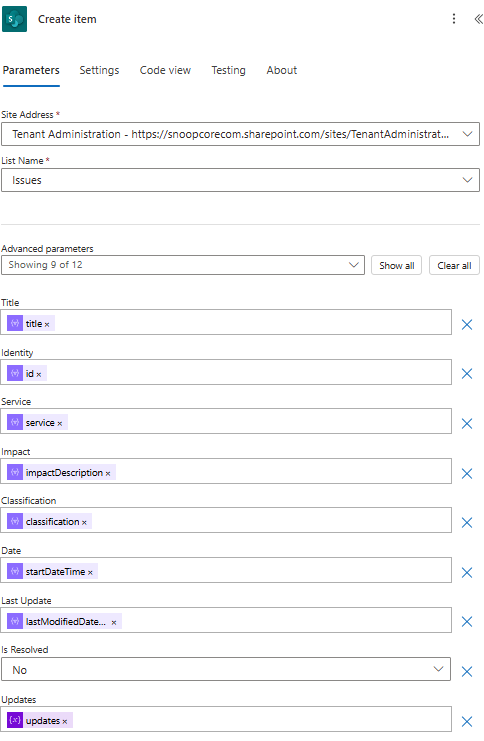
Create item (in a SharePoint list)
This is the action where we will store every issue in the Microsoft list
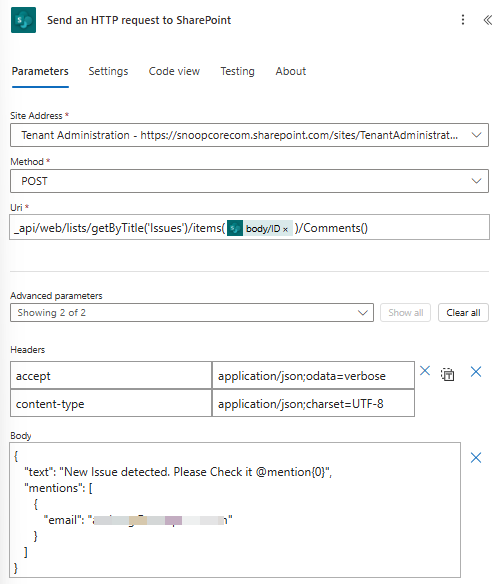
Send an HTTP Request to SharePoint
I incorporated this action to test adding a comment to every list item, you can add it or not, it is not vital, but it is useful to add a mention there, if you want:
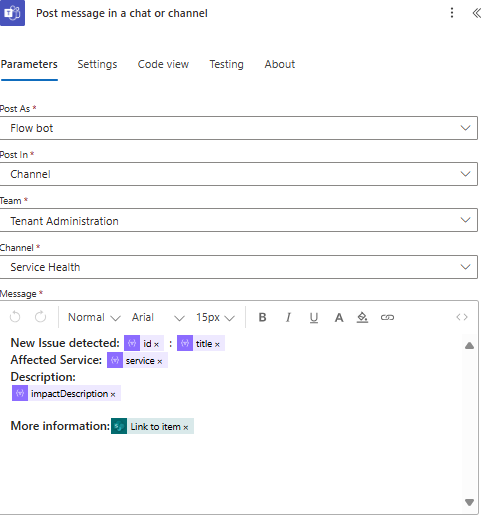
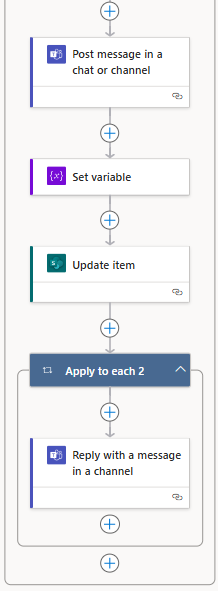
Post message in a chat or channel
This is the action that will take the issue we just inserted, from the Microsoft List to a Teams channel, you can customize the message to fit
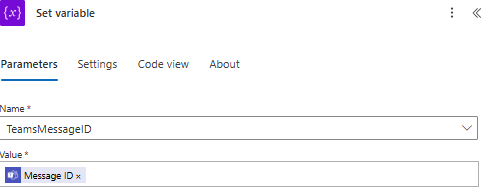
Set variable
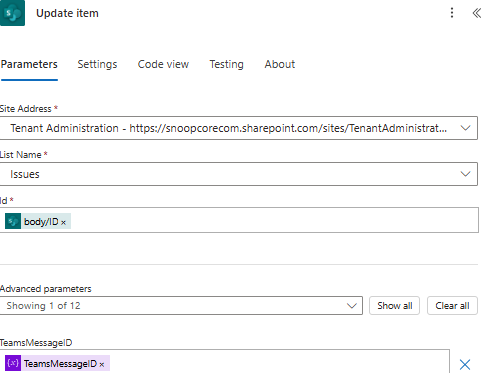
We will save the Teams Message ID in a variable and then store it in the list item (next action)
Update item
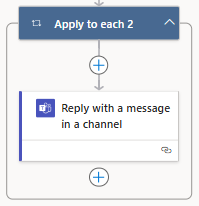
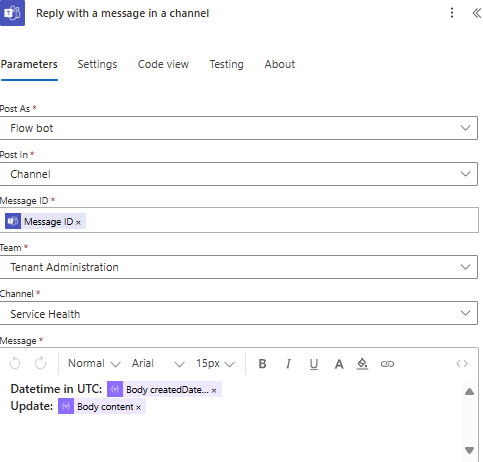
Apply to each & Reply with a message in a channel
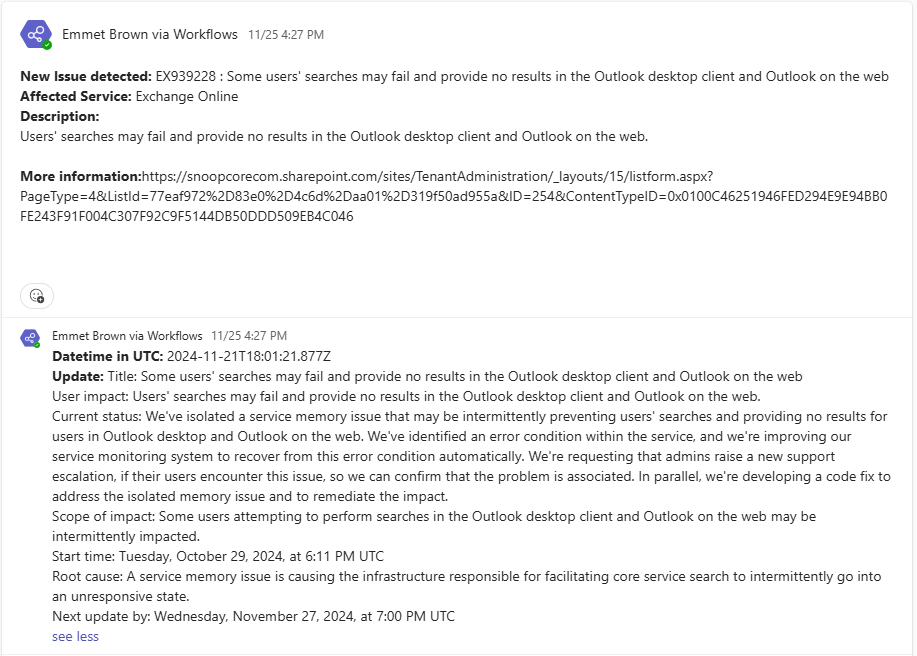
Every Service Health issue has posts representing every update to the issue (if it is being worked on, if the fix its on the way and so on), we will use these actions to reply to the message in the channel to add these updates:
Let’s zoom out
Final result
The end… for now
This is the final post of these series… for now, there is some more work to do, we have to take into account that Service Health issues have a lifecycle where they are created, updated and closed, these blog series so far cover new issues and any updates made to them until we collect them, but we need to create another flow to update the status of issues to close them on our Microsoft list and Teams channel message too, I will leave that for the near future, stay tuned!