How to check when the last M365 update was installed
Published · Updated
Introduction
Sometimes, it is necessary to know when the latest Microsoft 365 update was downloaded and installed; however, this information is not available in any UI or next to the build version in any of the M365 Apps.
Click-2-Run logs have the answer
Click-to-Run or C2R, the process responsible for installing and updating Microsoft 365 apps, saves logs to C:\Windows\Temp in filenames with this format HOSTNAME-20260119-0815.log.
If you use an advanced text editor, like Notepad++, you can use this filter in the Find In Files functionality:
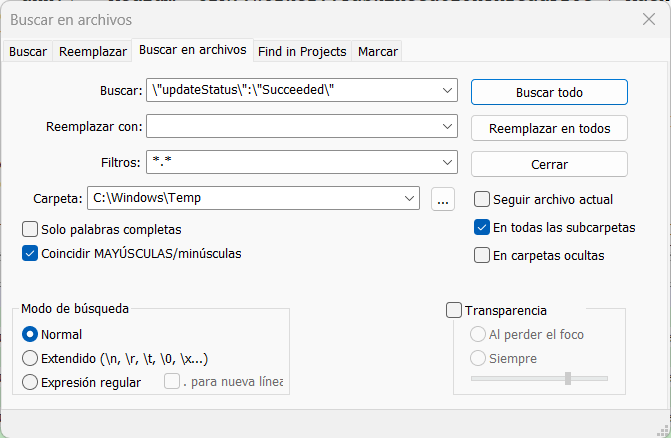
That should output all the times that the M365 Apps were updated. You can narrow the search to the specific version by tweaking the search string.
Example result:
01/12/2026 17:47:01.351 OFFICECL (0x37dc) 0x6e30 Click-To-Run crnbm Medium C2R::Worker::TaskExecutionThreadProc {"MachineId": "33d3894ca2d53c4e904d0ea87e4d0b52", "SessionID": "772d2cea-8888-4a1a-8f42-3663e2c0d33a", "GeoID": 54, "Ver": "16.0.19530.20138", "C2RClientVer": "16.0.19530.20138", "ContextData": "{\"sourceBuild\":\"16.0.19530.20138\",\"targetBuild\":\"16.0.19530.20138\",\"channel\":\"CC\",\"updateStatus\":\"Succeeded\"}"}A valuable piece of information
This information could be added to the About dialog in Word, Excel, PowerPoint; until Microsoft realizes this, we can use this method.